Bluetooth finding guide
How to Find Bluetooth Devices Using Signal Strength
Read the signal, then check the room
By Alexander Aizendorf · Updated October 13, 2026
What the dBm reading means
For readings from the same device, −50 dBm is a stronger received signal than −70 dBm. A trend toward a less negative reading can help decide where to search next. It does not provide an exact distance or a reliable direction.
Compare multiple readings from similar phone positions. A single jump is not enough to establish that you are getting closer.
RSSI means received signal strength indicator. Android exposes Bluetooth Low Energy scan strength in dBm. The value describes the signal received by your phone; it is not a GPS position, an audio-volume level or a measure of the earbud battery.
For compatible devices that are powered on and broadcasting a detectable signal. Free download with ads and optional purchases.
On this page
Compare readings without guessing meters
| Reading | What it tells you |
|---|---|
| −50 dBm compared with −70 dBm | The −50 dBm reading is stronger. Repeated readings may support searching that area. |
| −62, −59, −65 dBm in one spot | The reading is varying. Compare a series with the next spot rather than using the highest sample. |
| No fresh reading | You do not have a current signal measurement. A saved device or old reading does not locate it now. |
These numbers are examples, not universal “near” and “far” bands. Devices transmit differently, and the environment affects what the phone receives. Comparing unrelated devices by RSSI can be misleading.
Use a repeatable search pattern
- Identify the device. In Radar, start scanning and choose a result you recognize. An unknown result can belong to someone else’s device.
- Hold the phone consistently. Keep a similar height, grip and orientation while comparing spots.
- Pause for several readings. Observe the general pattern before moving. Do not chase every changing number.
- Move a few steps and compare. Search one area at a time, then return to the spot with the more consistently strong signal.
- Check physically. Inspect the desk, pocket, sofa or bag. A radio clue becomes useful only when it leads to the device.
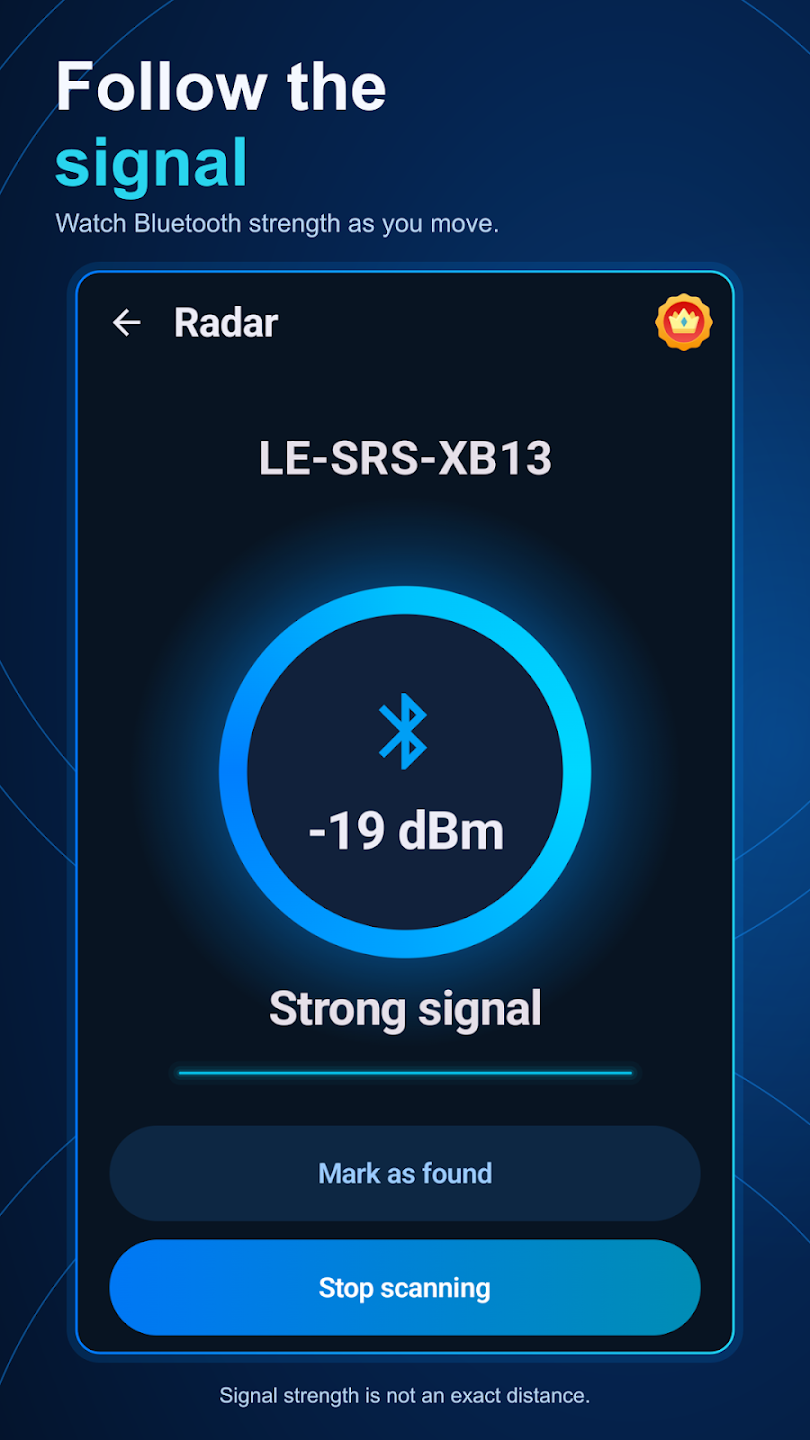
The earbud search guide explains the checks to make before using Radar. For a device with no detectable signal, review the alternative finding methods.
Why the signal jumps
Walls, furniture, the phone antenna, your grip and your body can change the path between the device and the receiver. Other radio activity can also affect the search. A stronger signal on one side of a room is evidence worth checking, not a guarantee about the device’s position.
When readings disagree, pause and repeat the comparison with the phone held similarly. Check likely hiding places in the stronger area, then compare again. Avoid assuming that a radar-style graphic is an exact map of the room.
What signal strength cannot tell you
RSSI alone does not provide a universal conversion to meters. It also cannot reliably tell you which direction to turn, whether the device is on another floor, or whether a closed case will wake up. Earbud Finder’s Radar does not claim an exact distance or direction.
A connected audio device can be available for supported connection-history features without producing a usable Radar signal. A device may also stop transmitting or move out of detectable range during a search. An empty scan does not tell you which of those explanations applies.
Use the signal as one clue alongside your last known location and a physical search. If your exact model supports its own finding service, check its documented options too.
Try a nearby Bluetooth search.
Earbud Finder is free to download, with ads and optional purchases. Compatible devices must be powered on and broadcasting a detectable signal.
Get Earbud Finder on Google PlayRelated guides
Sources and further help
- Android’s Bluetooth scan signal-strength definition
- Bluetooth SIG: factors that affect Bluetooth range
- Google: prepare supported devices and accessories for Find Hub
- Earbud Finder setup and support
Reviewed October 13, 2026. Device behavior and available finding features vary by model, Android version and setup.